I Had a Product, but Nobody Knew It Existed. Here’s How I Found Customers.
How I used ClientDoneForYou and Instantly to reach potential buyers directly.
Hi, I’m Dmitrii, founder of ClientDoneForYou.com.

I built ClientDoneForYou to help businesses find relevant prospects, and I use it to find potential customers for my own product. Here’s my workflow, from the first lead search to a trial invitation.
You built the product. Now you need people to try it.
But you don’t have a large audience. Inbound leads aren’t arriving every day. Every week spent waiting for someone to discover you is another week without customer conversations.
I use a simple path: find relevant prospects, ask whether they want access, then send the trial link after a positive reply.
I use ClientDoneForYou to find potential customers for ClientDoneForYou itself. Instantly handles the email campaigns and follow-ups. This playbook shows how those two parts connect.
Want to follow along with your own business? Start your free 14-day ClientDoneForYou trial →
A snapshot of my outreach
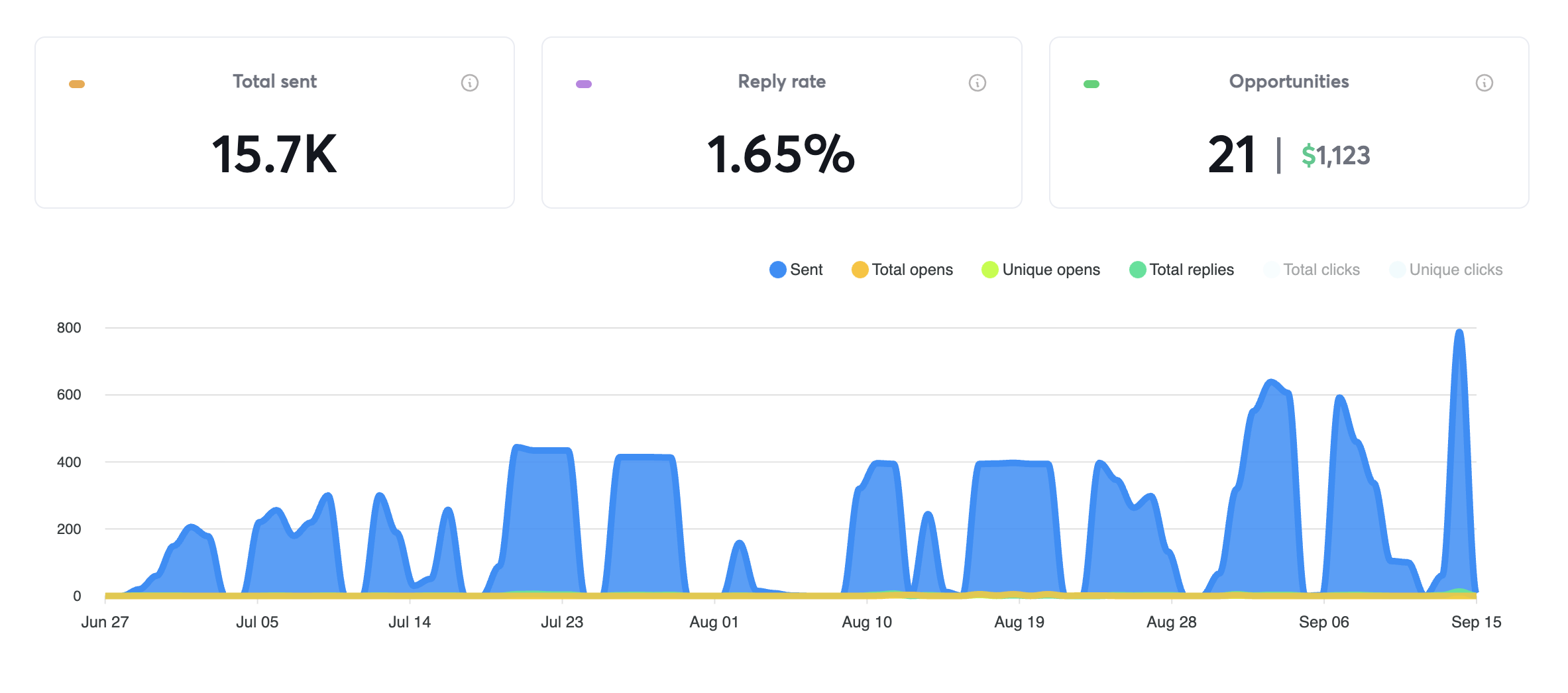
The supplied dashboard shows 15.7K total sends, a 1.65% reply rate, and 21 opportunities with a displayed value of $1,123. The visible chart spans June 27–September 15. Sends are not unique prospects, opportunities are not confirmed customers, and the displayed value is not evidence of collected revenue.
The tools I use
| Tool | Role |
|---|---|
| Namecheap | Sending domains and mailboxes |
| ClientDoneForYou | Finding relevant companies and decision-makers |
| Instantly | Inbox connections, warmup, campaigns, and subsequences |
Website → ClientDoneForYou search → selected prospects → Instantly campaign → positive reply → trial access → registration.
Step 1 — I buy separate sending domains
I buy multiple domains through Namecheap that are similar to my product’s domain. For a business called yourcompany.com, illustrative examples would be tryyourcompany.com or getyourcompany.com.
I keep cold outreach on separate domains to reduce the exposure of my primary business domain to campaign-related reputation problems. Separation does not eliminate every risk to the brand.
Action: buy the sending domains and keep a record of which mailboxes belong to each domain.
Step 2 — I create five mailboxes per domain
I create five mailboxes on each sending domain, also through Namecheap. This is my configuration, not a universal requirement.
- Create the mailboxes.
- Configure the provider’s required domain authentication.
- Check that each mailbox can send and receive email.
- Connect each mailbox to Instantly.
- Confirm the connections are working and record the daily sending limits.
Step 3 — I run warmup for 14 days
After connecting the mailboxes, I enable warmup in Instantly and leave it running for 14 days before starting cold outreach.
Fourteen days is the preparation period in my workflow. It does not guarantee inbox placement. Before launch, I check the connections, authentication, and any unresolved sending issues.
| Setting | My configuration |
|---|---|
| Mailboxes per domain | 5 |
| Warmup before outreach | 14 days |
| Initial daily campaign limit per inbox | 20 campaign emails per day |
| Daily limit after increasing volume | 50 campaign emails per inbox per day |
| Sending days and hours | Monday–Friday, 09:00–16:00 |
| Time zone | Set for each prospect group |
| Follow-up intervals | 1–2 days, within the campaign sending schedule |
Step 4 — I start lead discovery in ClientDoneForYou
After the warmup period, I start an automated lead search in ClientDoneForYou. This supplies the prospects that I later organize for outreach in Instantly.
Add the website
I add my website and review the proposed search setup.
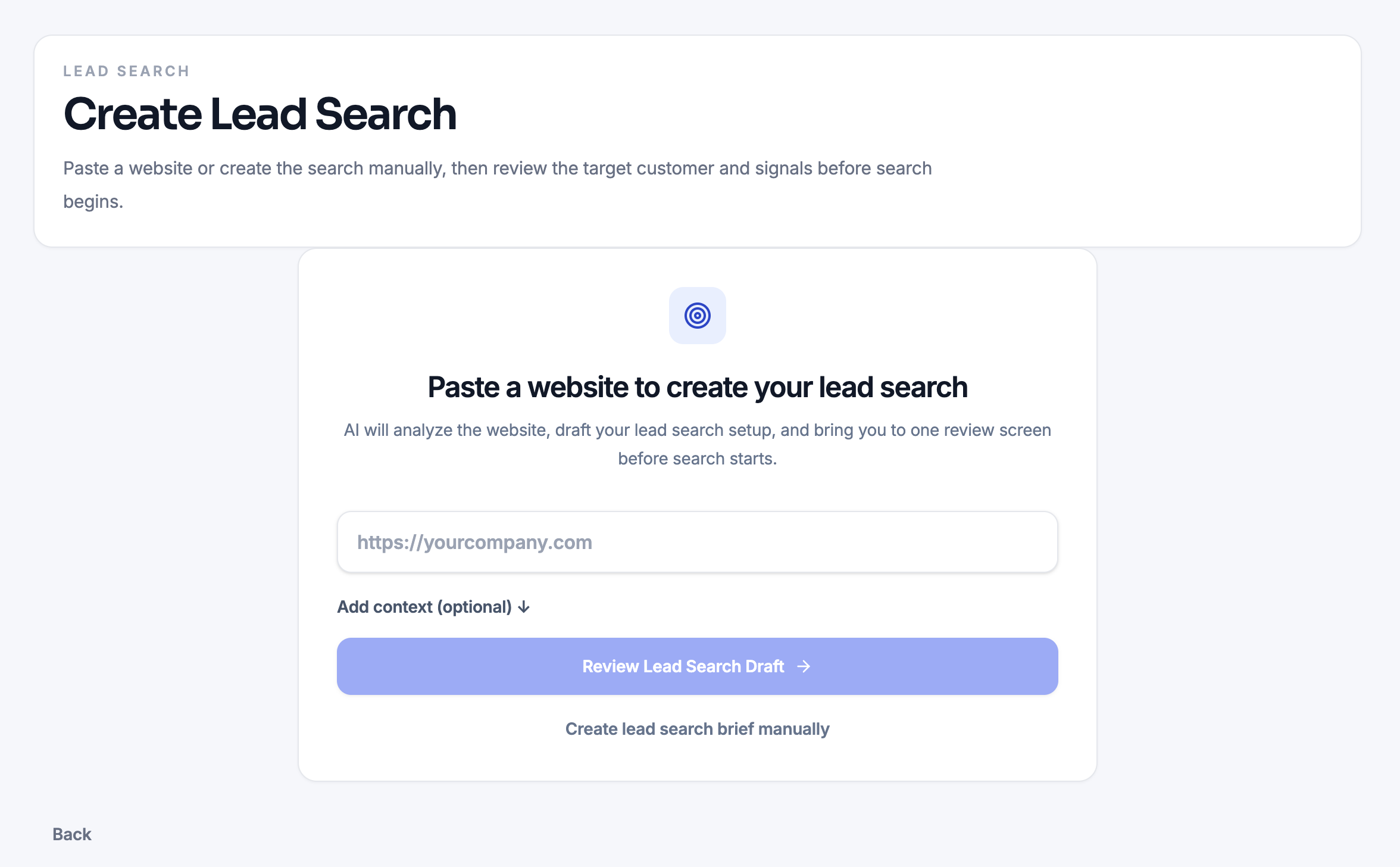
The starting screen: paste the website, optionally add context, and request a lead-search draft.
Review how the product understands the business
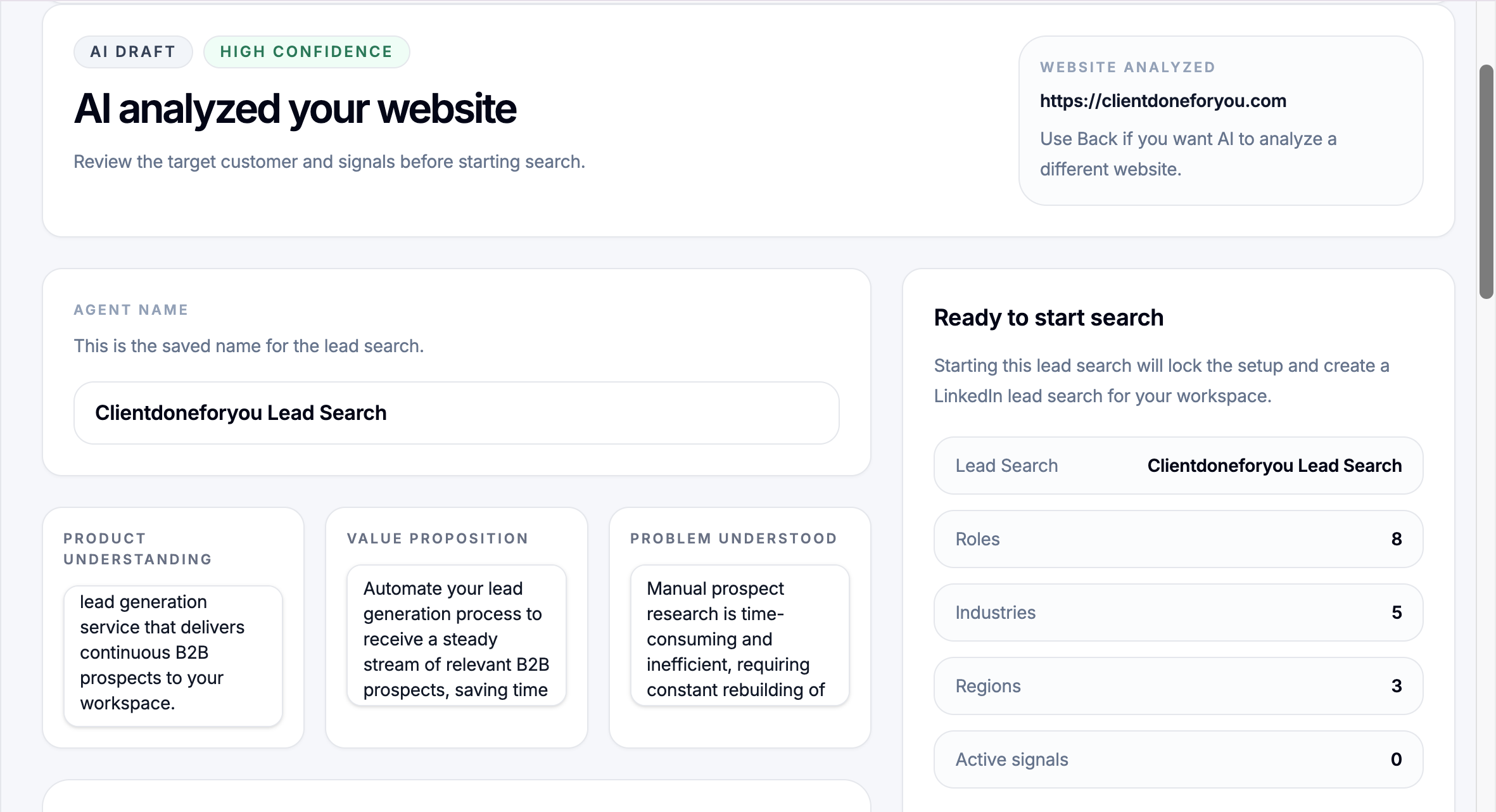
This example analyzes clientdoneforyou.com itself. The draft shows the product, value proposition, and problem before the search starts.
Check the target roles and industries
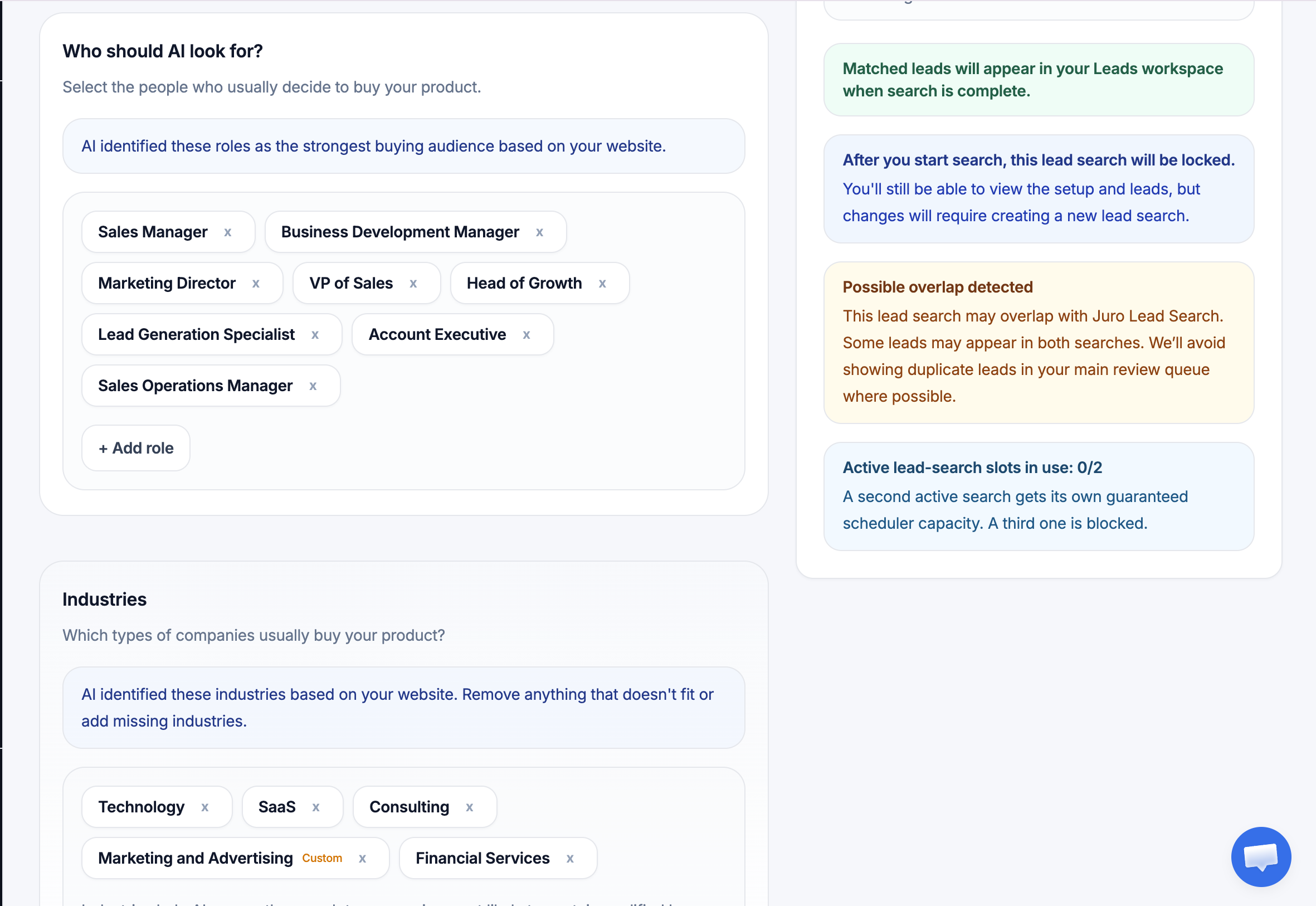
Review the proposed audience before launching. These are draft targeting criteria, not proof that the listed roles will buy.
As prospects appear, I review whether the company and role match the people I want to reach. ClientDoneForYou supplies the next group of prospects for my outreach workflow.
Try this with your website. Get your free 14-day trial and create your first lead search →
Step 5 — I group prospects and set local schedules
I group the leads by company and time zone before configuring the campaigns.
- Review the company and location.
- Assign the prospect to the appropriate group.
- Prepare the selected contacts for import.
- Upload the group into its Instantly campaign.
- Set sending days, hours, and time zone.
- Check the schedule before launch.
I schedule US and European prospects separately. Local scheduling gives people an opportunity to read and respond during their working day; it does not independently determine spam placement.
My sending window is Monday–Friday, 09:00–16:00 in the time zone assigned to each group. Follow-ups are spaced 1–2 days apart and respect that sending window.
Step 6 — I make the first response easy
My initial outreach asks whether the prospect would like access. A short “YES” is enough to express interest.
The actual opening email
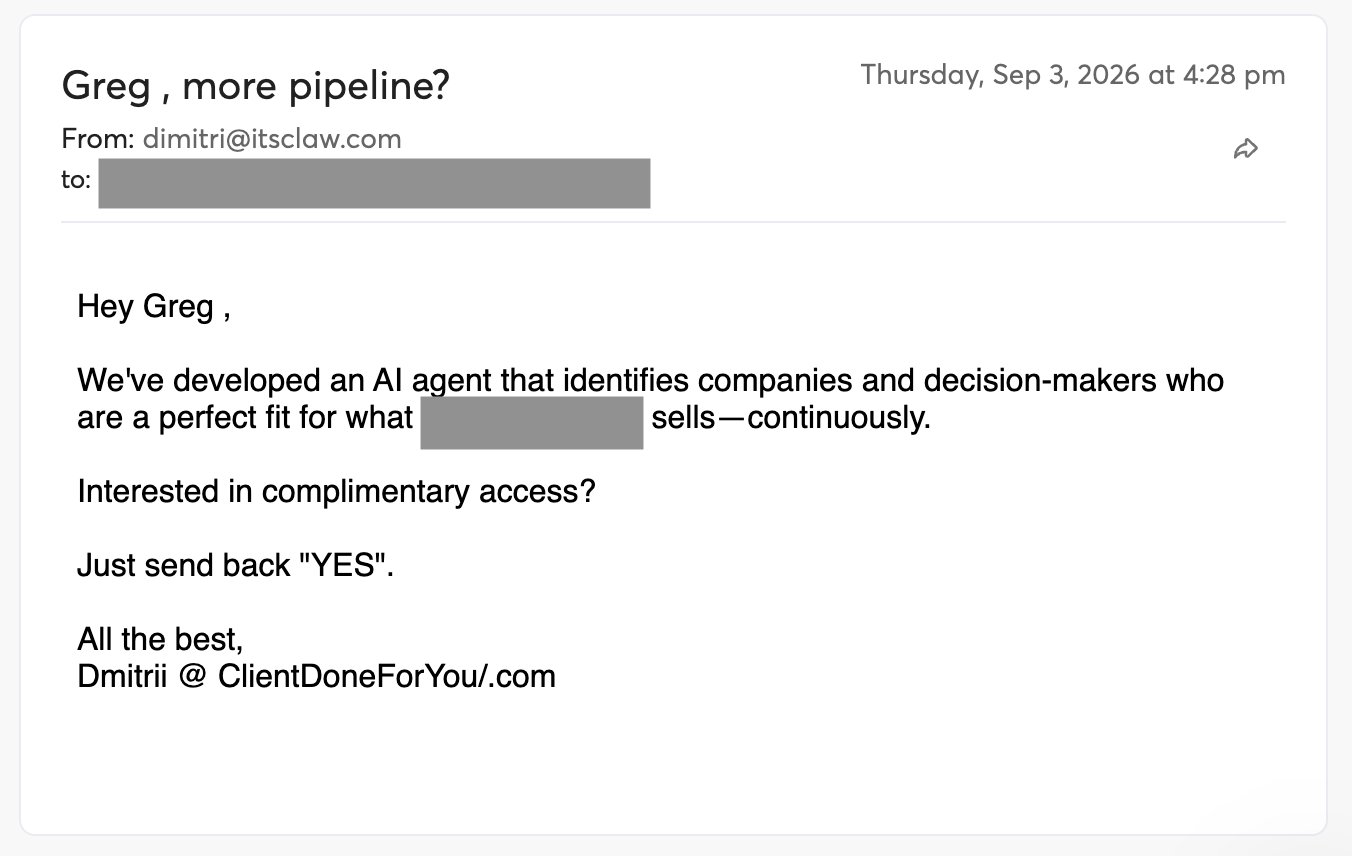
The message introduces the lead-search agent and asks for a simple reply. Recipient details are partially masked in the supplied image. The wording “perfect fit” is historical campaign copy, not a guarantee of lead quality.
For a new campaign, I would make the trial duration explicit and use “relevant” rather than “perfect fit”:
Hi {{firstName}},
Does your team still build prospect lists manually for outbound?
I built ClientDoneForYou to find relevant B2B companies and decision-makers automatically.
Would you like private access to a free 14-day trial?
[Your name]
Suggested revision; the screenshot above preserves the actual email.
A real follow-up
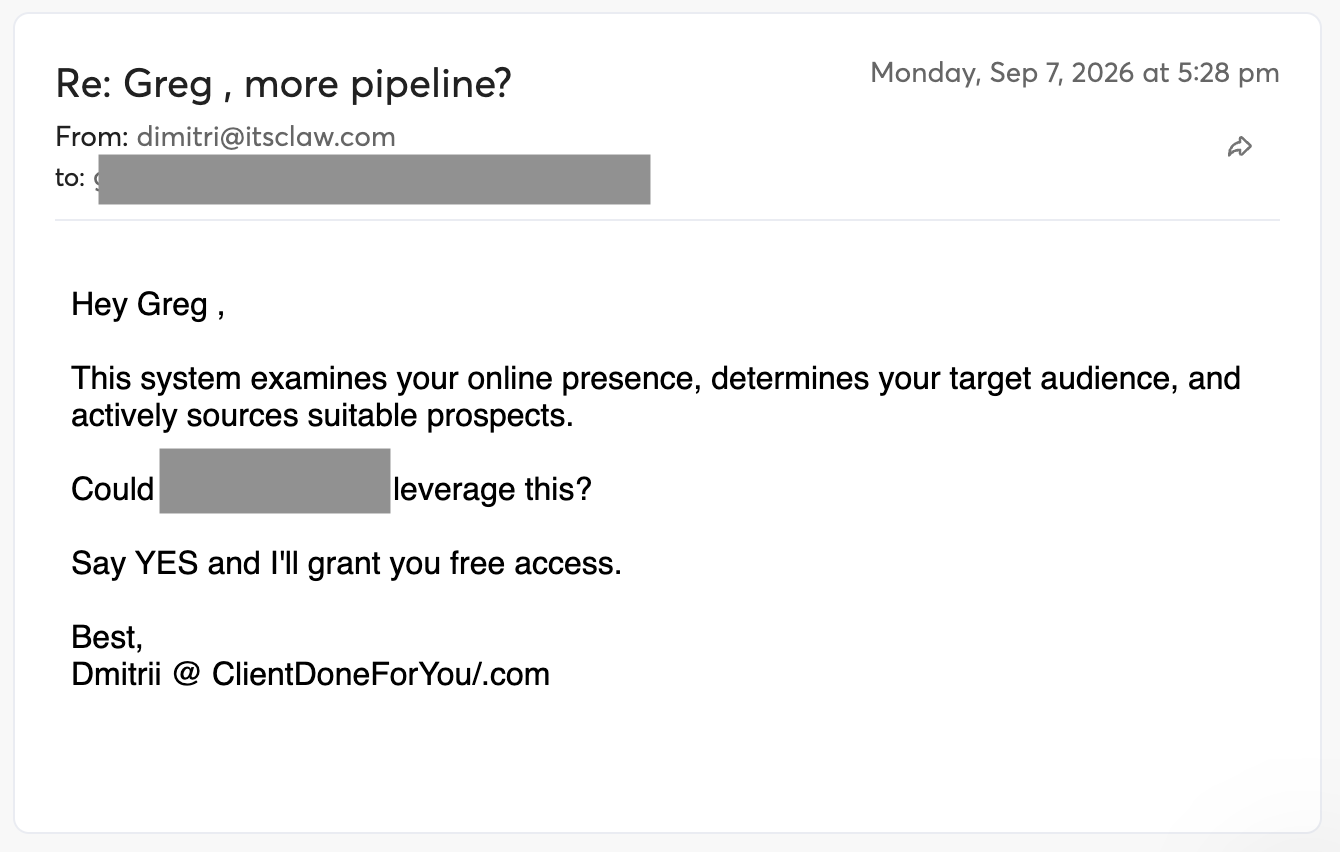
This follow-up explains the mechanism: the product examines the website, determines a target audience, and sources prospects. It repeats the request for a YES.
I use five initial sequences. Each prospect enters the sequence intended for their group, rather than receiving all five sequences.
The supplied thread documents these touches:
| Date shown | What happened |
|---|---|
| September 3, 2026 | Initial complimentary-access offer |
| September 4, 2026 | Trial reminder |
| September 7, 2026 | Follow-up explaining the product |
| September 8, 2026 | Another follow-up, quoted in the positive reply |
These are observed dates from one thread, not a recommended universal cadence.
Step 7 — A positive reply opens the trial conversation
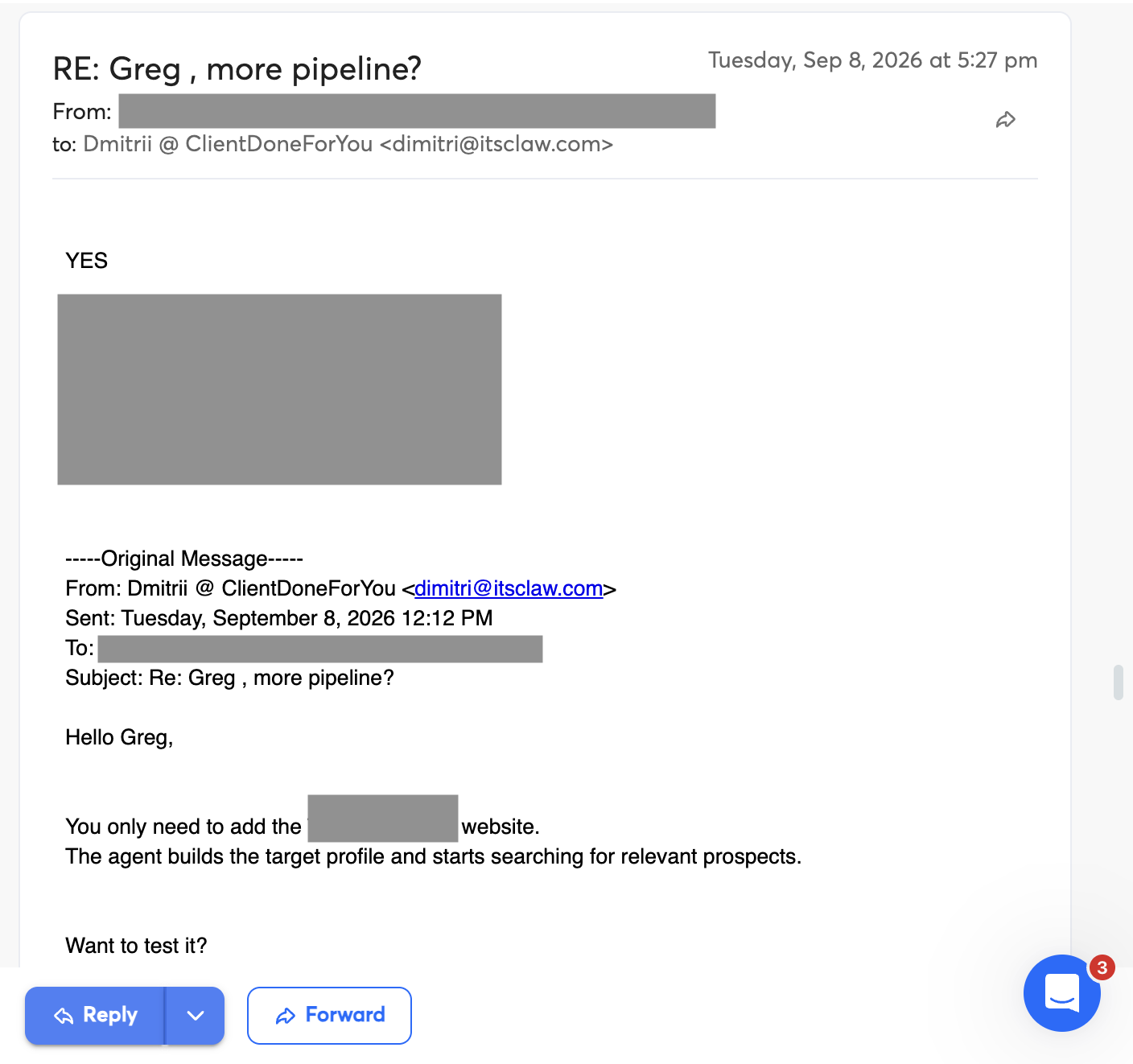
The prospect’s actual YES response. It establishes interest in receiving access; it does not establish a trial registration or sale.
Instantly automatically moves matching replies into a trial subsequence according to the conditions I configure. The initial outreach stops for that prospect.
| Event | Next action |
|---|---|
| Asks for access | Deliver the trial |
| Asks a question | Answer before continuing |
| Declines or opts out | Stop outreach |
| Reply is unclear | Review before moving the prospect |
My automatic transition settings
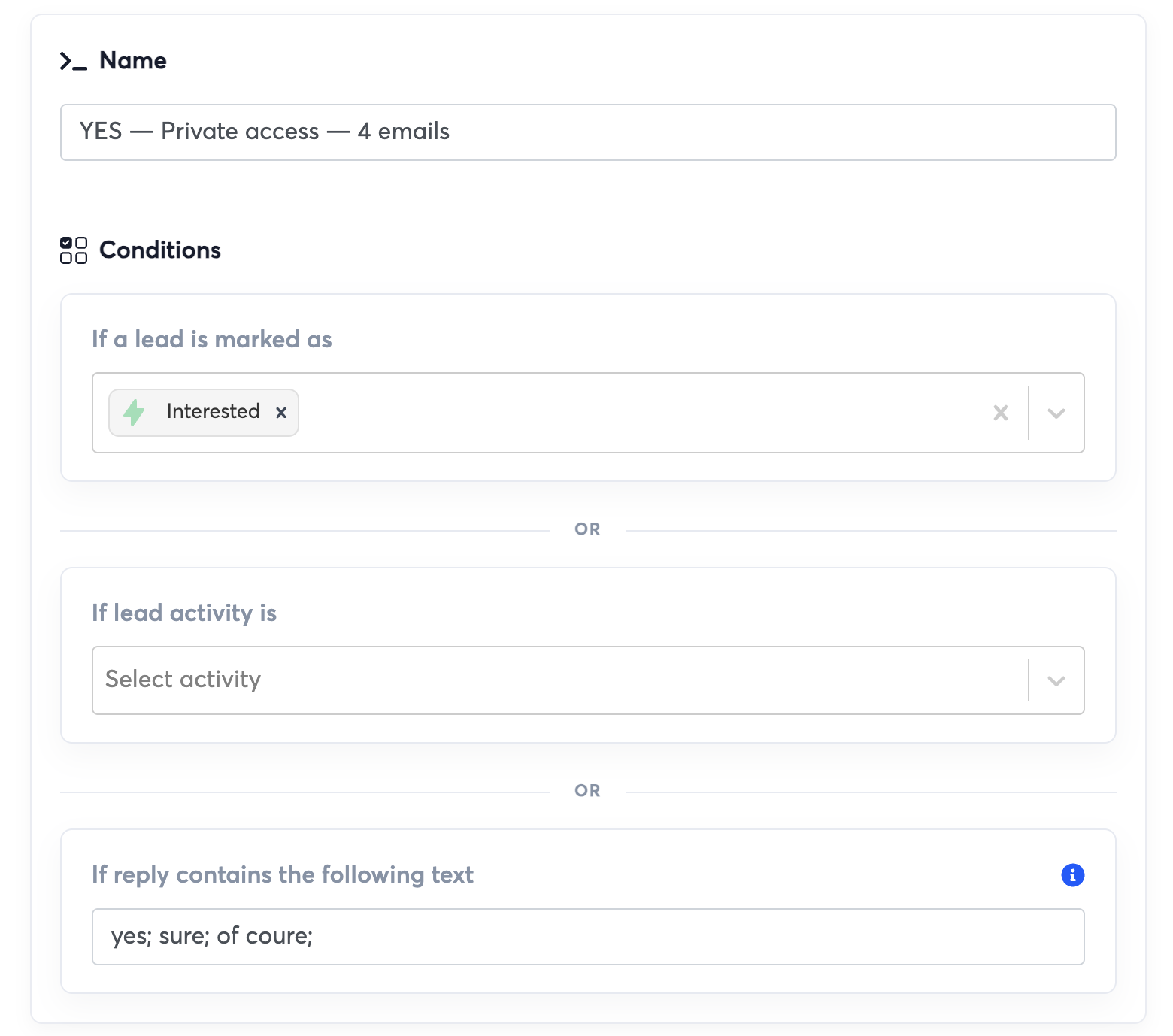
My Instantly conditions: the lead is marked Interested OR the reply contains one of the configured phrases: “yes”, “sure”, or “of coure” (as entered in this screenshot). The lead-activity condition is unused.
The screenshot shows the subsequence name “YES — Private access — 4 emails”. That is its saved label; the five-message section below is an adaptable template set, not a claim that five steps are shown in this settings screen.
When recreating the rule, use the correctly spelled phrase “of course”. Review reply context as well: a keyword match can also occur in a refusal such as “yes, remove me”. Stop outreach when the person declines or opts out.
A reply makes the next message expected. It does not automatically verify the sender or guarantee inbox placement. I include the link because the prospect asked for access.
Step 8 — I deliver the trial and follow up
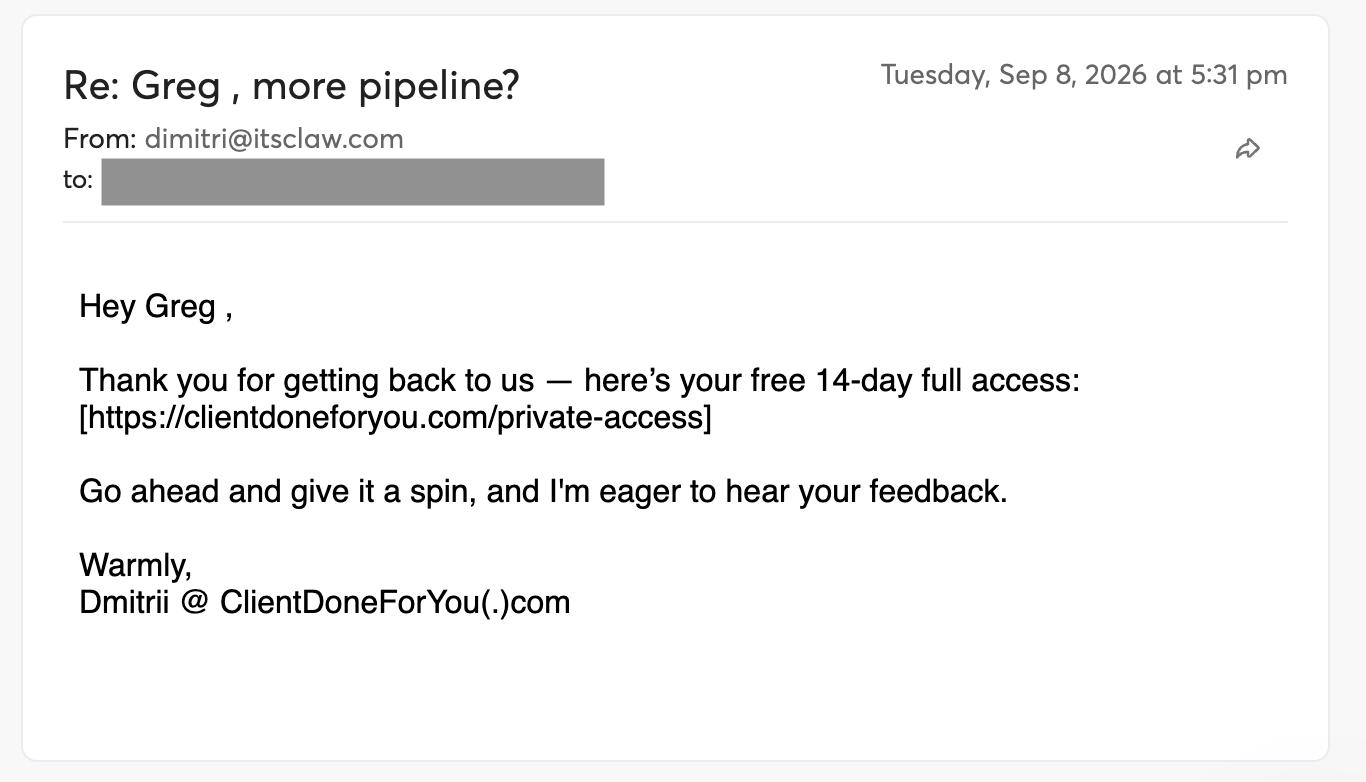
The actual response supplies the private trial URL. This is an email message, not a screenshot of the Instantly automation settings.
You can access the same offer here: Try ClientDoneForYou free for 14 days →
Below is a five-email template set for trial delivery and follow-up. The screenshot above shows my actual access email. Email 1 below is a rewritten template, and Emails 2–5 are suggested follow-ups you can adapt to your offer.
Email 1 — Deliver access
Hi {{firstName}},
Thanks — here’s your private access to the free 14-day ClientDoneForYou trial:
https://clientdoneforyou.com/private-access
Add your website, review your target profile, and launch the lead-search agent.
[Your name]
Email 2 — Explain the first step
Timing: 1–2 days after the previous email, within the sending schedule, if not registered.
Hi {{firstName}},
To get started, have your website URL and an idea of the companies you want to reach ready.
You can review the target profile before launching your search.
Here’s your access link again: Start your 14-day trial
Email 3 — Connect the trial to their outreach
Timing: 1–2 days after the previous email, within the sending schedule, if not registered.
Hi {{firstName}},
You can use the trial to see whether ClientDoneForYou finds prospects that fit your next outbound campaign.
Review the matches, select the contacts you want to enrich, and export them for outreach.
Your access: Start your 14-day trial
Email 4 — Offer help with targeting
Timing: 1–2 days after the previous email, within the sending schedule, if not registered.
Hi {{firstName}},
Is choosing the right audience holding you up?
Reply with the companies and roles you want to reach, and I can help you think through the target profile.
Email 5 — Close the loop
Timing: 1–2 days after the previous email, within the sending schedule, if not registered.
Hi {{firstName}},
I’ll leave this here for now.
If you still want to test ClientDoneForYou, start your free 14-day trial here.
If the timing isn’t right, no problem — I’ll stop the reminders.
Step 9 — Track what happens after the reply
Contacted → positive reply → registered → first search launched → paying customer.
Track each stage separately. A reply shows interest in the offer; a registration shows the person took the next step; a search launch shows activation; a payment shows conversion to a customer.
I stop cold emails after registration
As soon as someone registers, I manually stop cold emails for that contact in Instantly, including the trial-invitation follow-ups. The transition into the subsequence is automatic; stopping outreach after registration is my manual step.
If you use this workflow, check registrations before the next scheduled follow-up so registered users do not keep receiving invitations to start a trial they have already joined.
Before I launch
- [ ] Domains and mailboxes are configured and connected.
- [ ] The warmup period is complete and sending checks are clear.
- [ ] Daily limits and schedules are recorded.
- [ ] Prospects are reviewed and grouped.
- [ ] The first email clearly explains the trial offer.
- [ ] Personalization fields and the access link are tested.
- [ ] Positive replies leave the initial sequence.
- [ ] Declines and opt-outs stop outreach.
- [ ] Registered users stop receiving invitations.
Build one complete path
The first useful milestone is a relevant prospect moving through the process: they receive the offer, ask for access, register, and try the product.
ClientDoneForYou helps me find the next people to contact. Instantly manages the outreach. I review fit, handle replies, and help interested people get started.
Find prospects for your own product
Want to see which companies ClientDoneForYou finds for your business?